Showing posts with label ☑PC-Tips and Tricks. Show all posts

Tuesday, November 27, 2012

✍ FYI: RouterPasswords - Retrieving Forgotten Router Passwords the Easy Way


For Your Information...

RouterPasswords - Retrieving Forgotten Router Passwords the Easy Way

Not that you would need to do so very often, but if ever you are having problems accessing your router because you can't remember the password - this is the site for you!


RouterPasswords.com provides quick access for technicians to default passwords used on routers, default web logins, CCTV systems and other electronic devices. 

RouterPasswords is the largest free online database of default router passwords. Their database is maintained by the online comunity and is constantly updated by visitors who can submit new passwords.


From 2Wire to Zyxel, they have every manufacturer and model make possible!  


Recource(s):  MFS-Useful Links


Monday, September 17, 2012

☑PC-Tips and Tricks: iPad - Did You Know?


The iPad is a line of tablet computers (mobile computers), designed and marketed by Apple Inc., primarily as a platform for audio-visual media including books, periodicals, movies, music, games, apps and web content. Its size and weight fall between those of contemporary smartphones and laptop computers.

Like iPhone and iPod Touch, the iPad is controlled by a multitouch display—a departure from most previous tablet computers, which generally used a pressure-triggered stylus—as well as a virtual onscreen keyboard in lieu of a physical keyboard.


The first-generation iPad showing its home screen


The successor to the iPad 2 was unveiled on March 7, 2012 by Apple CEO Tim Cook.  The new iPad sports the new dual core A5X processor with quad-core graphics, and a Retina Display with a resolution of 2,048 by 1,536 pixels this is over 50 percent more pixels than a standard 1,920 by 1,080 high definition TV screen.

Ok, so maybe you already know all that about the iPad.  But here are some interesting tidbits you probably didnt...


☑PC-Tips and Tricks: Saving Images on Your iPad


Saving images on your iPad sounds difficult but in reality, it is very simple to do.


Find the desired picture you want to save, either on the web or in your email and just do the following:

Tap and hold down your finger on the desired picture until you see the following pops up:


Monday, April 9, 2012

☑PC-Tips and Tricks: Avoiding Google Instant Predictions


Ok, I've heard and read many times how frustrated some of you are when searching Google only to have these Google Predictions popping up as you type - trying to predict what you are typing. 
Here are a few solutions for turning Google Instant on and off that I've discovered through Google forums:


Solution #1


1. From Google.com, select the gear icon in the top right hand corner of the page


2. Select Search settings


3. Scroll down to the Google Instant section and choose a preference:


4. Save your changes!The problem with this solution is that you must keep your cookies. If you delete them for security purposes, like I do, then you have to repeat this process over and over again.

Another problem I've discovered (being Canadian), is that the "Google.com" that Canadians get is actually an "international site" not the U.S. site. This is why I could never find that "search settings" when I clicked on my gear icon.  Instead I'd get this:


So for all you Canadians and non-Americans, here's the actual link for setting your preferences:


Note: How Google Instant works–and how it’s accessed–may be different than described here, depending on the browser (Firefox, Chrome, etc,) or the OS (XP, Vista, Windows 7).  I'm using Windows 7.


Solution #2


I found this solution the best. When all else fails... make the following your home page:
This google webpage will not have instant search set to on, and you don't have to constantly go to settings to turn the default to off (or have to keep cookies on your computer).
Plus, on top of this - that link appears to be the ACTUAL American Google site!

Good luck!

Monday, January 23, 2012

☑PC-Tips and Tricks: Sending Text Via E-mail


Sending Text Via E-mail

Do you text alot?  Dumb question right.  Sure you do.  Well if you still have one of those little keypads with little teeny-tiny keys that drives you mental like it does me, or a touchpad screen that's well, un-touchable or unresponsive sometimes, this little trick is for you!  This little trick has been around since 2008, but somehow I never discovered it, lol.

If you know your friends’ phone numbers and the carrier they are on then you can easily send emails to their cell phones directly from your email using an SMS gateway.  What is SMS gateway you say?


You really don't have to know this in order to do this neat little trick.  But if you're curious, an SMS gateway is a telecommunications network facility for sending or receiving Short Message Service (SMS) transmissions to or from a telecommunications network that supports SMS. Most messages are eventually routed into the mobile phone networks. Many SMS gateways support media conversion from email and other formats. 

Anyways, all you have to know is the number and the carrier of the person you are sending a text to and then check out this list from Wikipedia (or the list below), to find the "Mail-to-SMS Gateway", or in otherwords, the email address to use to send your text message.


So, for example, if my friend's carrier is Koodo Mobile (Canada), then I look it up on the list from Wikipedia and this is what it is:


So, then I type it in my friend's phone number along with the gateway address (in red):


Then hit SEND and voila!


UNITED STATES

3 River Wireless - xxxxxxxxx@sms.3rivers.net
Advantage Communications - xxxxxxxxx@advantagepaging.com
AirVoice - xxxxxxxxx@mmode.com
Airtouch Pagers - xxxxxxxxx@airtouch.net
Airtouch Pagers - xxxxxxxxx@airtouchpaging.com
Airtouch Pagers - xxxxxxxxx@alphapage.airtouch.com
Airtouch Pagers - xxxxxxxxx@myairmail.com
AllTel - xxxxxxxxx@message.alltel.com
Alltel PCS - xxxxxxxxx@message.alltel.com
Alltel - xxxxxxxxx@alltelmessage.com
Ameritech Paging - xxxxxxxxx@pageapi.com
Arch Pagers (PageNet) - xxxxxxxxx@archwireless.net
Arch Pagers (PageNet) - xxxxxxxxx@epage.arch.com
AT&T - xxxxxxxxx@txt.att.net
Bell South (Blackberry)- xxxxxxxxx@bellsouthtips.com
Bell South Mobility - xxxxxxxxx@blsdcs.net
Bell South - xxxxxxxxx@blsdcs.net
Bell South - xxxxxxxxx@sms.bellsouth.com
Bell South - xxxxxxxxx@wireless.bellsouth.com
Bluegrass Cellular - xxxxxxxxx@sms.bluecell.com
Boost Mobile - xxxxxxxxx@myboostmobile.com
Boost - xxxxxxxxx@myboostmobile.com
CallPlus - xxxxxxxxx@mmode.com
Carolina Mobile Communications - xxxxxxxxx@cmcpaging.com
Cellular One East Coast - xxxxxxxxx@phone.cellone.net
Cellular One PCS -xxxxxxxxx@paging.cellone-sf.com
Cellular One South West - xxxxxxxxx@swmsg.com
Cellular One West - xxxxxxxxx@mycellone.com
Cellular One - xxxxxxxxx@message.cellone-sf.com
Cellular One - xxxxxxxxx@mobile.celloneusa.com
Cellular One - xxxxxxxxx@sbcemail.com
Cellular South - xxxxxxxxx@csouth1.com
Central Vermont Communications - xxxxxxxxx@cvcpaging.com
CenturyTel - xxxxxxxxx@messaging.centurytel.net
Cingular (GSM)- xxxxxxxxx@cingularme.com
Cingular (TDMA)- xxxxxxxxx@mmode.com
Cingular Wireless - xxxxxxxxx@mobile.mycingular.net
Cingular - xxxxxxxxx@cingularme.com
Communication Specialists - xxxxxxx@pageme.comspeco.net
Cook Paging - xxxxxxxxx@cookmail.com
Corr Wireless Communications - xxxxxxxxx@corrwireless.net
Dobson Communications Corporation - xxxxxxxxx@mobile.dobson.net
Dobson-Alex Wireless / Dobson-Cellular One - xxxxxxxxx@mobile.cellularone.com
Edge Wireless - xxxxxxxxx@sms.edgewireless.com
GCS Paging - xxxxxxxxx@webpager.us
GTE - xxxxxxxxx@gte.pagegate.net
GTE - xxxxxxxxx@messagealert.com
Galaxy Corporation - xxxxxxxxx@sendabeep.net
GrayLink / Porta-Phone - xxxxxxxxx@epage.porta-phone.com
Houston Cellular - xxxxxxxxx@text.houstoncellular.net
Inland Cellular Telephone - xxxxxxxxx@inlandlink.com
JSM Tele-Page - xxxxxxxxx@jsmtel.com
Lauttamus Communication - xxxxxxxxx@e-page.net
MCI Phone - xxxxxxxxx@mci.com
MCI - xxxxxxxxx@pagemci.com
Metro PCS - xxxxxxxxx@metropcs.sms.us
Metro PCS - xxxxxxxxx@mymetropcs.com
MetroPCS - xxxxxxxxx@mymetropcs.com
Metrocall 2-way - xxxxxxxxx@my2way.com
Metrocall - xxxxxxxxx@page.metrocall.com
Midwest Wireless - xxxxxxxxx@clearlydigital.com
Mobilecom PA - xxxxxxxxx@page.mobilcom.net
Mobilfone - xxxxxxxxx@page.mobilfone.com
Morris Wireless - xxxxxxxxx@beepone.net
NPI Wireless - xxxxxxxxx@npiwireless.com
Nextel - xxxxxxxxx@messaging.nextel.com
Nextel - xxxxxxxxx@page.nextel.com
Ntelos - xxxxxxxxx@pcs.ntelos.com
Omnipoint - xxxxxxxxx@omnipoint.com
Omnipoint - xxxxxxxxx@omnipointpcs.com
OnlineBeep - xxxxxxxxx@onlinebeep.net
PCS One - xxxxxxxxx@pcsone.net
Pacific Bell - xxxxxxxxx@pacbellpcs.net
PageMart - xxxxxxxxx@pagemart.net
PageOne NorthWest - xxxxxxxxx@page1nw.com
Pioneer / Enid Cellular - xxxxxxxxx@msg.pioneerenidcellular.com
Price Communications - xxxxxxxxx@mobilecell1se.com
ProPage - xxxxxxxxx@page.propage.net
Public Service Cellular - xxxxxxxxx@sms.pscel.com
Qualcomm - name@pager.qualcomm.com
Qwest - xxxxxxxxx@qwestmp.com
RAM Page - xxxxxxxxx@ram-page.com
ST Paging - pin@page.stpaging.com
Safaricom - xxxxxxxxx@safaricomsms.com
Satelindo GSM - xxxxxxxxx@satelindogsm.com
Satellink - xxxxxxxxx.pageme@satellink.net
Simple Freedom - xxxxxxxxx@text.simplefreedom.net
Skytel Pagers - xxxxxxxxx@email.skytel.com
Skytel Pagers - xxxxxxxxx@skytel.com
Smart Telecom - xxxxxxxxx@mysmart.mymobile.ph
Southern LINC - xxxxxxxxx@page.southernlinc.com
Southwestern Bell - xxxxxxxxx@email.swbw.com
Sprint PCS - xxxxxxxxx@messaging.sprintpcs.com
Sprint - xxxxxxxxx@sprintpaging.com
SunCom - xxxxxxxxx@tms.suncom.com
Surewest Communications - xxxxxxxxx@mobile.surewest.com
T-Mobile - xxxxxxxxx@tmomail.net
TIM - xxxxxxxxx@timnet.com
TSR Wireless - xxxxxxxxx@alphame.com
TSR Wireless - xxxxxxxxx@beep.com
Teletouch - xxxxxxxxx@pageme.teletouch.com
Telus - xxxxxxxxx@msg.telus.com
The Indiana Paging Co - xxxx@pager.tdspager.com
Triton - xxxxxxxxx@tms.suncom.com
US Cellular - xxxxxxxxx@email.uscc.net
USA Mobility - xxxxxxxxx@mobilecomm.net
Unicel - xxxxxxxxx@utext.com
Verizon PCS - xxxxxxxxx@myvzw.com
Verizon Pagers - xxxxxxxxx@myairmail.com
Verizon - xxxxxxxxx@vtext.com
Virgin Mobile - xxxxxxxxx@vmobl.com
Virgin Mobile - xxxxxxxxx@vxtras.com
WebLink Wireless - xxxxxxxxx@pagemart.net
West Central Wireless - xxxxxxxxx@sms.wcc.net
Western Wireless - xxxxxxxxx@cellularonewest.com
Wyndtell - xxxxxxxxx@wyndtell.com

AUSTRIA

MaxMobil - xxxxxxxxxx@max.mail.at
One Connect - xxxxxxxxx@onemail.at
T-Mobile - xxxxxxxxx@sms.t-mobile.at

AUSTRALIA

Blue Sky Frog - xxxxxxxxx@blueskyfrog.com
Optus Mobile - xxxxxxxxx@optusmobile.com.au

BELGIUM

Mobistar - xxxxxxxxx@mobistar.be

BERMUDA

Mobility - xxxxxxxxx@ml.bm

BRAZIL

Nextel - xxxxxxxxx@nextel.com.br

CANADA

Aliant - xxxxxxxxx@sms.wirefree.informe.ca
Bell Mobility - xxxxxxxxx@txt.bell.ca
Bell Mobility - xxxxxxxxx@txt.bellmobility.ca
Fido - xxxxxxxxx@fido.ca
Koodo Mobile - xxxxxxxxx@msg.telus.com
Microcell - xxxxxxxxx@fido.ca
Manitoba Telecom Systems - xxxxxxxxx@text.mtsmobility.com
MTS Mobility - xxxxxxxxx@text.mtsmobility.com
NBTel - xxxxxxxxx@wirefree.informe.ca
PageMart - xxxxxxxxx@pmcl.net
PageNet - xxxxxxxxx@pagegate.pagenet.ca
PC Telecom - xxxxxxxxx@mobiletxt.ca
Rogers - xxxxxxxxx@pcs.rogers.com
SaskTel - xxxxxxxxx@pcs.sasktelmobility.com Telus - xxxxxxxxx@msg.telus.com
Virgin Mobile - xxxxxxxxx@vmobile.ca

CHILE

Bell South - xxxxxxxxx@bellsouth.cl

CZECH REPUBLIC

Eurotel - +ccaaxxxxxxx@sms.eurotel.cz
Oskar - xxxxxxxxx@mujoskar.cz

DENMARK

Sonofon - xxxxxxxx@note.sonofon.dk
Tele Danmark Mobil - xxxxxxxx@sms.tdk.dk
Telia Denmark - xxxxxxxxx@gsm1800.telia.dk

ESTONIA

EMT - xxxxxxxxx@sms.emt.ee

FRANCE

SFR - xxxxxxxxx@sfr.fr

GERMANY

T-Mobile - +49xxxxxxx@t-d1-sms.de
Mannesmann Mobilefunk - xxxxxxx@d2-message.de
E-Plus - 0177xxxxxxx.sms@eplus.de

HUNGARY

PGSM - 3620xxxxxxx@sms.pgsm.hu

INDIA

BPL mobile - xxxxxxxxx@bplmobile.com
Chennai RPG Cellular - xxxxxxxxx@rpgmail.net
Chennai Skycell / Airtel - xxxxxxxxx@airtelchennai.com
Delhi Aritel - xxxxxxxxx@airtelmail.com
Delhi Hutch - xxxxxxxxx@delhi.hutch.co.in
Idea Cellular - xxxxxxxxx@ideacellular.net
Orange - xxxxxxxxx@orangemail.co.in

IRELAND

Meteor - xxxxxxxxx@sms.mymeteor.ie

ITALY

Telecom Italia Mobile - 33xxxxxxxx@posta.tim.it
Vodafone Omnitel - 34xxxxxxxx@vizzavi.it
Vodafone - xxxxxxxxx@sms.vodafone.it

JAPAN

Vodafone Japan - xxxxxxxxx@c.vodafone.ne.jp
Vodafone Japan - xxxxxxxxx@h.vodafone.ne.jp
Vodafone Japan - xxxxxxxxx@t.vodafone.ne.jp

LATVIA

Kyivstar - xxxxxxxxx@smsmail.lmt.lv
LMT - 9xxxxxx@smsmail.lmt.lv
Tele2 - xxxxxxxxx@sms.tele2.lv

LEBANON

Cellis / LibanCell - 9613xxxxxx@ens.jinny.com.lb

LUXEMBOURG

P&T Luxembourg - xxxxxxxxx@sms.luxgsm.lu

MALAYSIA

Celcom - 019xxxxxxx@sms.celcom.com.my

NETHERLANDS

Dutchtone / Orange-NL - xxxxxxxxx@sms.orange.nl

NORWAY

Netcom - xxxxxxxxx@sms.netcom.no
Telenor - xxxxxxxxx@mobilpost.no

PANAMA

Cable and Wireless - xxxxxxxxx@cwmovil.com

POLAND

Plus GSM - +4860xxxxxxx@text.plusgsm.pl

PORTUGAL

Telcel - 91xxxxxxx@sms.telecel.pt
Optimus - 93xxxxxxx@sms.optimus.pt
TMN - 96xxxxxxx@mail.tmn.pt

RUSSIA

BeeLine GSM - xxxxxxxxx@sms.beemail.ru
MTS - 7xxxxxxxxxx@sms.mts.ru
Personal Communication - sms@pcom.ru (number in subject line)
Primtel - xxxxxxxxx@sms.primtel.ru
SCS-900 - xxxxxxxxx@scs-900.ru
Uraltel - xxxxxxxxx@sms.uraltel.ru
Vessotel - xxxxxxxxx@pager.irkutsk.ru

SERBIA AND MONTENEGRO (YUGOSLAVIA)

Mobtel Srbija - xxxxxxxxx@mobtel.co.yu

SINGAPORE

MiWorld - xxxxxxxxx@m1.com.sg
Mobileone - xxxxxxxxx@m1.com.sg

SLOVENIA

Mobitel - xxxxxx@linux.mobitel.si
Si Mobil - xxxxxx@simobil.net

SPAIN

Movistar - xxxxxxxxx@correo.movistar.net
Vodafone - xxxxxxxxx@vodafone.es

SWEDEN

Comviq GSM - 467xxxxxxxx@sms.comviq.se
Europolitan - 4670xxxxxxx@europolitan.se

SWITZERLAND

Sunrise Mobile - xxxxxxxxx@freesurf.ch
Sunrise Mobile - xxxxxxxxx@mysunrise.ch
Swisscom - xxxxxxxxx@bluewin.ch

TANZANIA

Mobitel - xxxxxxxxx@sms.co.tz

UKRAINE

Golden Telecom - xxxxxxxxx@sms.goldentele.com
Kyivstar - xxxxxxxxxx@2sms.kyivstar.net
UMC - xxxxxxxxx@sms.umc.com.ua

UNITED KINGDOM

Orange - 0973xxxxxx@omail.net
Orange - xxxxxxxxx@orange.net
O2 - name@o2.co.uk
O2 (M-mail) - 44xxxxxxxxx@mmail.co.uk
T-Mobile UK - xxxxxxxxx@t-mobile.uk.net
Vodafone UK - xxxxxxxxx@vodafone.net


Resource(s):  makeuseof.com, worldstart.com, tech-faq.com

Monday, January 2, 2012

☑PC-Tips and Tricks: Extra Security During Log On in Windows 7 Using CTRL+ALT+DEL


Extra Security During Log On in Windows 7 Using CTRL+ALT+DEL


You can require users to press CTRL+ALT+DELETE before logging on to a  Windows 7-based computer.

If you’re looking to add an extra layer of security to your Windows 7 system, then you may want to consider implementing a bit of a “human touch”, just to be extra sure.

By requiring users to physically hit Ctrl+Alt+Del to access the log on screen in windows, you ensure that malicious programs (ones that try to mimic a system logon to hack passwords) can’t even make it through the front gate.

Here’s how you do it:


Hit Start, and in the search box type netplwiz – click the icon that appears in the list above.


Once the User Accounts window opens up, click the Advanced tab.


At the bottom you’ll see the Secure logon field. Put a check in the box next to Require users to press Ctrl+Alt+Delete


Hit OK, and you’re all set!  If you want to go back to a Ctrl+Alt+Delete-free world again, just follow these steps and un-check the box!

What does the “Require users to press Ctrl+Alt+Delete” do?
The main advantage of using secure logon is that other programs such as password software cannot intercept your user name and password as you enter them for login. Therefore, using secure logon provides an additional layer of security for your computer.


Resource(s):  worldstart.com, support.microsoft.com/

Tuesday, November 1, 2011

✍ FYI: How Fast Does Your Web/Blog Page Load?


For Your Information...
Testing the Loading Time of Your Website

Nobody likes a slow web page and mine is full of so much stuff that I've always wondered how long it really took to load in terms of actual seconds as well as how to fix the problem if it does take a long time to load.

Well after searching 'high and low' and sifting through some really crappy sites, I finally found one that seems to get the job done.  Let's put it this way, after using pingdom.com, my site loading time went from 60 seconds to 3.27 seconds just by deleting some of the "slow-as-molasses" culprits they've discovered on my page!


As Pingdom Stated Best...
"We built this Full Page Test tool to help you analyze the load speed of your websites and learn how to make them faster. It lets you identify what about a web page is fast, slow, too big, what best practices you’re not following, and so on. We have tried to make it useful both to experts and novices alike.

In short, we wanted it to be a free, easy-to-use tool to help webmasters and web developers everywhere optimize the performance of their websites."

Go check them out when you have some time, to see what else they have to offer!

I hope this was helpful.


Source:  MFS-UsefulLinks

Thursday, October 20, 2011

❏This vs That ❐: Internet vs World Wide Web (WWW)


Welcome to Thursday's


The terms Internet and World Wide Web are often used in everyday speech without much distinction. However, the Internet and the World Wide Web are not one and the same. The hardware and software infrastructure of the Internet establishes a global data communications system between computers. In contrast, the Web is one of the services used to gain access to and through the Internet. It is a collection of interconnected documents and other resources, linked by hyperlinks and URLs.


One of the greatest things about the Internet is that nobody really owns it. It is a global collection of networks, both big and small. These networks connect together in many different ways to form the single entity that we know as the Internet. In fact, the very name comes from this idea of interconnected networks.


The Internet
Simply, the Internet is a network of networks -- and there are all kinds of networks in all kinds of sizes. It connects millions of computers together globally, forming a network in which any computer can communicate with any other computer as long as they are both connected to the Internet.  It is a network of networks that consists of millions of private, public, academic, business, and government networks, of local to global scope, that are linked by a broad array of electronic, wireless and optical networking technologies. The Internet carries a vast range of information resources and services, such as the inter-linked hypertext documents of the World Wide Web (WWW) and the infrastructure to support electronic mail.
You may have a computer network at your work, at your school or even one at your house. These networks are often connected to each other in different configurations, which is how you get groupings such as local area networks (LANs) and regional networks. Your cell phone is also on a network that is considered part of the Internet, as are many of your other electronic devices. And all these separate networks -- added together -- are what constitute the Internet. Even satellites are connected to the Internet.

WWW's "historical" logo,
created by Robert Cailliau
The World Wide Web (WWW aka Web)
The World Wide Web (abbreviated as WWW or W3, and commonly known as the Web) is a system of interlinked hypertext documents, (text displayed on a computer or other electronic device with references (hyperlinks) to other text that the reader can immediately access, usually by a mouse click or keypress sequence) accessed via the Internet. With a web browser such as Internet Explorer or Firefox, one can view web pages that may contain text, images, videos, and other multimedia and navigate between them via hyperlinks.
Using concepts from earlier hypertext systems, British engineer and computer scientist Sir Tim Berners-Lee, now Director of the World Wide Web Consortium (W3C), wrote a proposal in March 1989 for what would eventually become the World Wide Web.  At CERN in Geneva, Switzerland, Berners-Lee and Belgian computer scientist Robert Cailliau proposed in 1990 to use hypertext "... to link and access information of various kinds as a web of nodes in which the user can browse at will", and they publicly introduced the project in December.

"The World-Wide Web was developed to be a pool of human knowledge, and human culture, which would allow collaborators in remote sites to share their ideas and all aspects of a common project."


Conclusion
So, to better understand the difference between internet and web, think of it this way:

Consider the internet to be the highway and you are driving through the city looking for access to this highway/internet.  In order to get on the highway/internet, you will have to be able to access it through the exit/ramp/world wide web.


Monday, September 12, 2011

☑PC-Tips and Tricks: CREATING STRONG PASSWORDS


CREATING STRONG PASSWORDS


Strong passwords are important protections to help you have safer online transactions.

Keys to password strength: length and complexity

An ideal password is long and has letters, punctuation, symbols, and numbers.

  • Whenever possible, use 14 characters or more.
  • The greater the variety of characters in your password, the better.
  • Use the entire keyboard, not just the letters and characters you use or see most often.


Create a strong password you can remember

There are many ways to create a long, complex password. Here are some suggestions that might help you remember it easily:

What to do                                         Example
Start with a sentence or two.             Complex passwords are safer and easier to remember.

Remove the spaces between the words in the sentence.

                                                           Complexpasswordsaresaferandeasiertoremember.

Turn words into symbols, numbers, or shorthand. 

                                                           ComplexpasswordsRsafer&easier2remember.

Add length with numbers. Put numbers that are meaningful to you after the sentence.    

                                                           ComplexpasswordsRsafer&easier2remember2011.


Test your password with a password checker

A password checker evaluates your password's strength automatically.  You can check here, or microsoft's own password checker.

Protect your passwords from prying eyes

The easiest way to "remember" passwords is to write them down. It is okay to write passwords down, but keep them secure.

Common password pitfalls to avoid

Cyber criminals use sophisticated tools that can rapidly decipher passwords.

Avoid creating passwords that use:

  • Dictionary words in any language.
  • Words spelled backwards, common misspellings, and abbreviations.
  • Sequences or repeated characters. Examples: 12345678, 222222, abcdefg, or adjacent letters on your keyboard (qwerty).
  • Personal information. Your name, birthday, driver's license, passport number, or similar information.


DID YOU KNOW...
  • On July 16, 1998, CERT reported an incident where an attacker had found 186,126 encrypted passwords. By the time they were discovered, they had already cracked 47,642 passwords.
  • In December 2009, a major password breach of the Rockyou.com website occurred that led to the release of 32 million passwords. The hacker then leaked the full list of the 32 million passwords (with no other identifiable information) to the internet. Passwords were stored in cleartext in the database and were extracted through a SQL Injection vulnerability. The Imperva Application Defense Center (ADC) did an analysis on the strength of the passwords.
  • In June 2011, NATO (North Atlantic Treaty Organization) experienced a security breach that led to the public release of first and last names, usernames, and passwords for more than 11,000 registered users of their e-Bookshop. The data was leaked as part of Operation AntiSec, a movement that includes Anonymous, LulzSec, as well as other hacking groups and individuals. The aim of AntiSec is to expose personal, sensitive, and restricted information to the world, using any means necessary.
  • On July 11, 2011, Booz Allen Hamilton, a large American Consulting firm that does a substantial amount of work for the Pentagon, had their servers hacked by Anonymous and leaked the same day. "The leak, dubbed 'Military Meltdown Monday,' includes 90,000 logins of military personnel—including personnel from USCENTCOM, SOCOM, the Marine Corps, various Air Force facilities, Homeland Security, State Department staff, and what looks like private sector contractors." These leaked passwords wound up being hashed in Sha1, and were later decrypted and analyzed by the ADC team at Imperva, revealing that even military personnel look for shortcuts and ways around the password requirements.
  • On July 18, 2011, Microsoft Hotmail banned the password: "123456".


Resource(s):  microsoft.com, wikipedia


Tuesday, September 6, 2011

✍ FYI: WebInpaint - The Easier Way to Remove Unwanted Pics


For Your Information...
WebInpaint - is the easier way to remove unwanted pics or objects.

You know you have those moment in time when you want to use a certain picture but you wish to hell that certain someone wasn't in that picture.  Or an object for that matter - that you wish wasn't there.

Whatever your reasons for wanting something or someone gone from a pic - it can be easily achieved with advanced photo editing applications like GIMP, Summo Paint or Photoshop but, if you’re not quite ready for sophisticated photo editing software, try WebInPaint.  It’s a simple tool which can be used to remove a specific object or person from a photo and looks something like this:


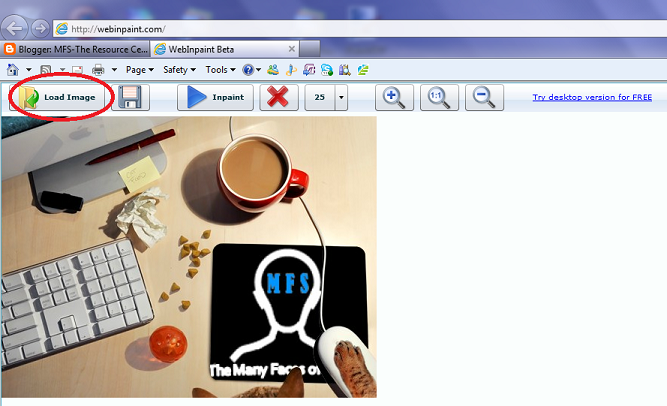
The cool thing about WebinPaint is that the application will blur the background of the object so that the image does not appear broken.  And it's so darn easy to use:
 

I'll use one of my pics. So first I'll have to load up an image from my files. 
Click on the LOAD IMAGE.


Ok, so it's bad enough that I have a cat at my desk - using my mouse, but I may be able to talk my way out of that one if the boss ever got a hold of this pic.  But how do I explain the ball on the table?  So I'll have to get rid of that.


So using my mouse, I covered the ball completely.  Actually, come to think of it, I better get rid of the cat food evidence also... just in case.


Once that is done, I just hit that INPAINT button...


Wait for it.... wait for it... and then ................ voila!

All evidence is ERASED!


I won't explain in detail how to use this simple tool.  Just go and play around with it a bit - you'll figure it out.  If worse comes to worse and you screwed the pic up - just reload it again and start over! 


Source:  MFS-UsefulLinks

Monday, August 29, 2011

☑PC-Tips and Tricks: Google Chrome Voice Search


GOOGLE CHROME VOICE SEARCH

Are you using the latest version of Google Chrome?   Have you been to Google.com lately to do a search, then?  If you have, then you’ve probably seen this icon next to the search box:


Click it, and you can use your computer’s microphone to enter your search string! Just wait until you get the box that says “Speak now” and you’re good to go! It’s just like the Android smart-phone interface!

Voice Search provides a method to search by speaking. For example, just click on the microphone and say "kittens" to search for kittens. If you specifically want pictures of kittens, say "google images kittens". Want to learn more about World War II? Say "wikipedia world war two".

Voice Search comes pre-loaded with the following default services: Google, Wikipedia, YouTube, Bing, Yahoo, DuckDuckGo and Wolfram|Alpha. You can also add your own user-defined search engines. It also integrates speech input buttons for text fields on all websites.

This extension requires a microphone, and it needs access to all websites so it can add speech input buttons to every text field.


Requirements

You can use Voice Search on the English version of Google.com if you're using the latest version of Chrome. If you already have Chrome installed, click the wrench icon wrench and select About Google Chrome to check for a new version. If you don’t have Chrome, you can download Google Chrome.

Make sure your computer has a working microphone. While some laptops and desktops have built-in microphones, others require external ones. You should be able to test the microphone in your computer’s audio settings in system preferences or control panel.


Windows Microphone Setting


Mac Microphone Setting

Using Voice Search

Open the Chrome browser and go to http://www.google.com/.  You’ll see a small gray microphone on the right-hand side of the search box.


Click the microphone and you’ll see the dialog bubble below indicating that it’s time for you to say your search term.


Your results show up just as if you had typed the search term.


Video


Resource(s):  chrome.google.com